1
Make your account
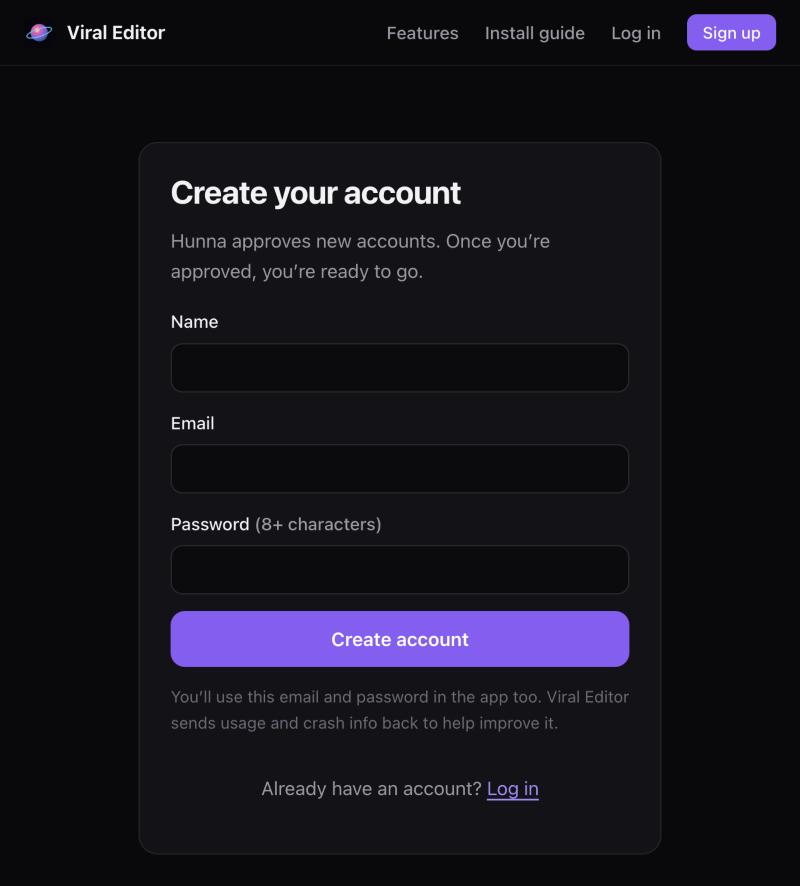
Go to viraleditor.takeabeat.club/signup. Paste the activation key Hunna sent you, then your name, email and a password.
Remember this email and password. You’ll use them again inside the app.
 Viral Editor
Install guide · ~10 minutes, mostly waiting
No tech skills needed. Follow the steps in order. Each one has a picture of exactly what you should see.
Go to viraleditor.takeabeat.club/signup. Paste the activation key Hunna sent you, then your name, email and a password.
Remember this email and password. You’ll use them again inside the app.
On your account page, hit Download Viral Editor. It’s a zip file and lands in your Downloads folder.
Open Finder → Downloads and double-click Viral Editor 0.x.zip. You get a folder with the app inside.
If Safari already unzipped it for you, you’ll just see the folder. That’s fine, skip ahead.
Open a second Finder window (⌘ N) and click Applications in the sidebar. Drag Viral Editor from the folder into Applications.
Don’t run it from Downloads. Updates only work when it lives in Applications.
Viral EditorDouble-click Viral Editor in Applications. The first time, macOS asks if you’re sure you want to open an app from the internet. Click Open. (Apple has checked it.)
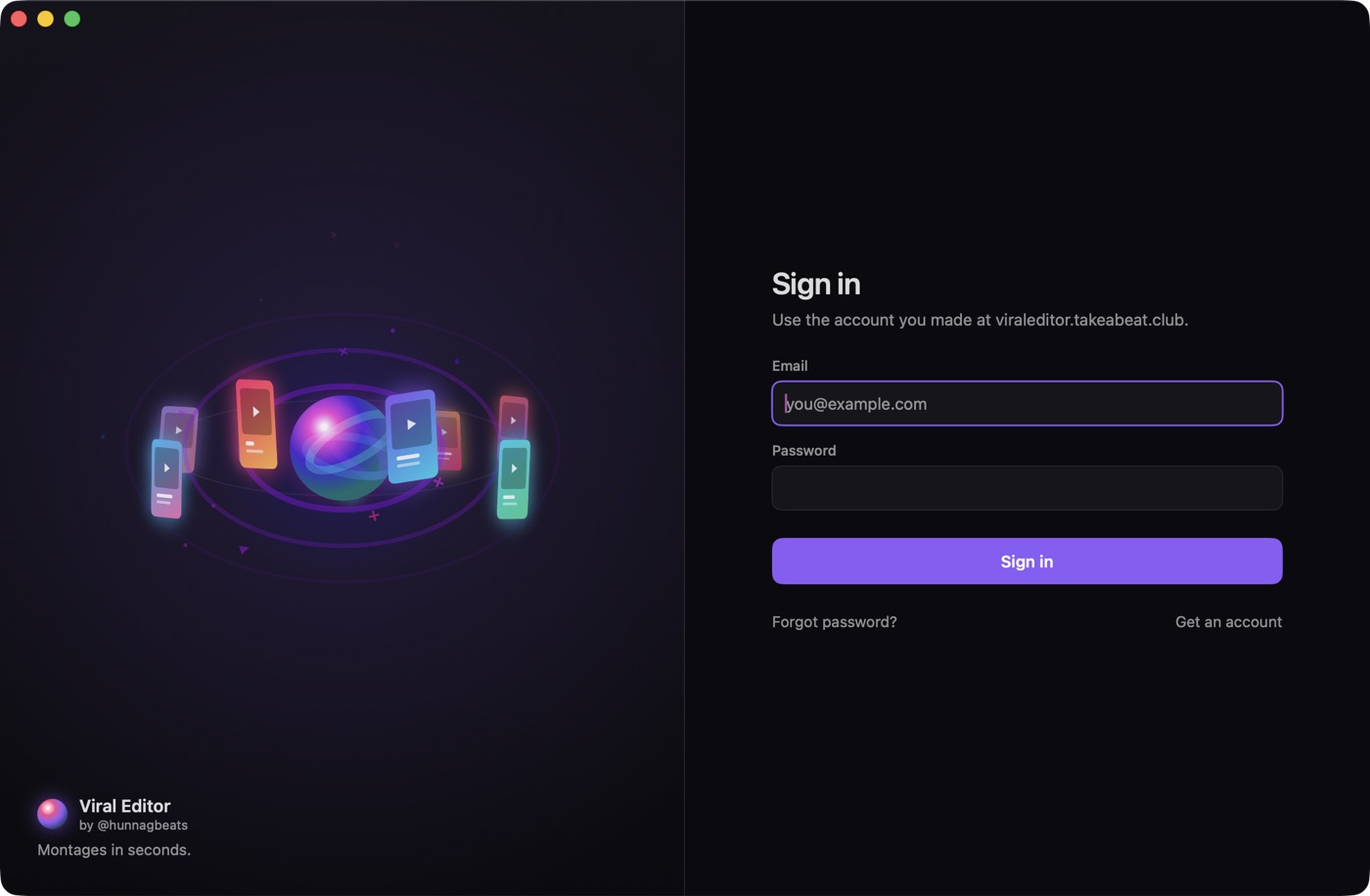
It opens with a sign-in screen. Use the email and password from step 1.
Your account works on up to 2 Macs. Signed in somewhere you don’t use any more? Sign it out on your account page.
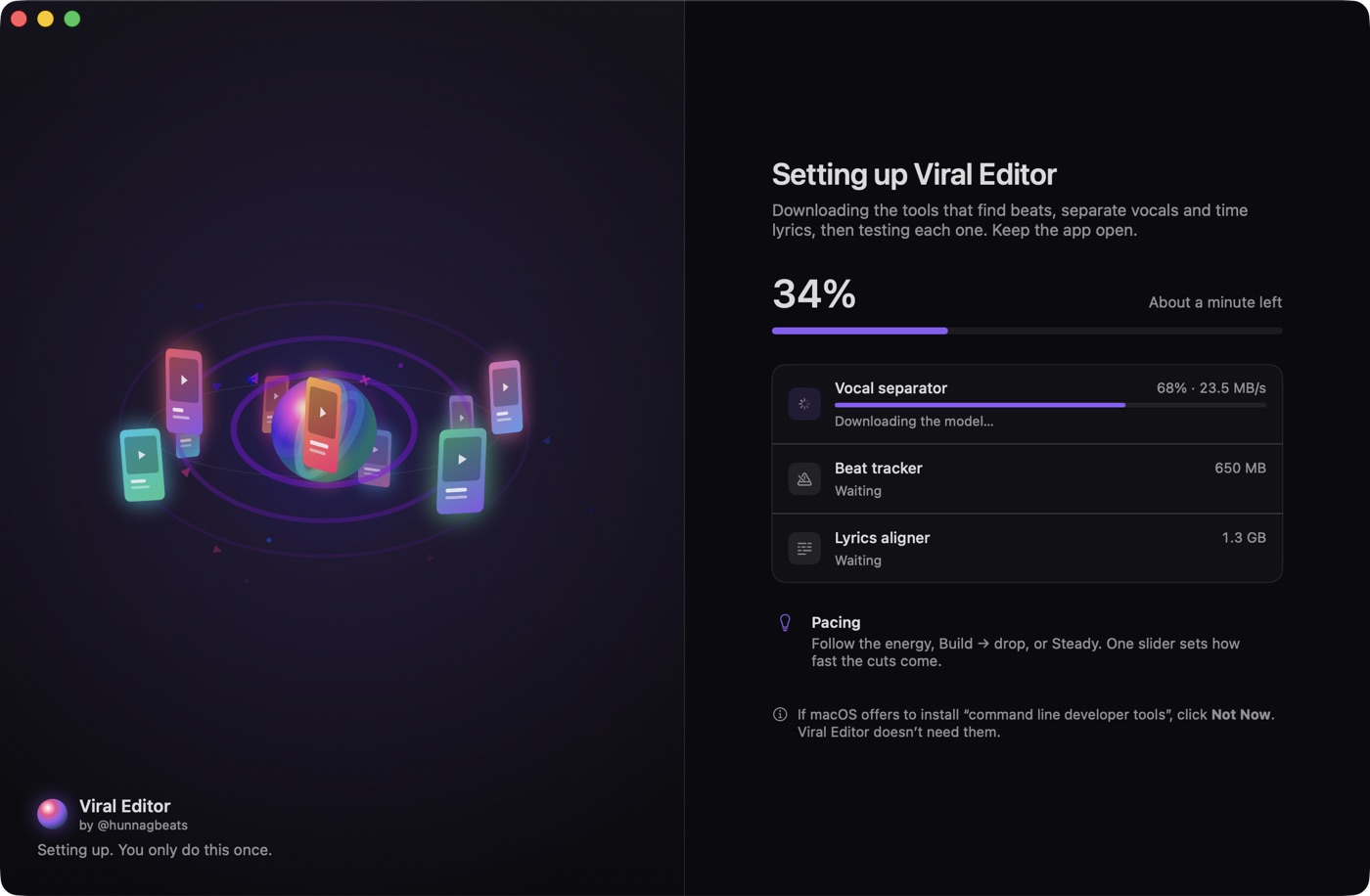
The app now downloads its tools: the beat finder, the vocal separator and the lyrics aligner (about 4 GB). Then it tests each one. Takes 5 to 20 minutes depending on your Wi-Fi. Read the tips while you wait.
Click Not Now (or Cancel). Viral Editor doesn’t need them, and it’s a big download you can skip.
Keep the app open and your Mac awake. If it gets interrupted, just open it again and it carries on where it stopped.
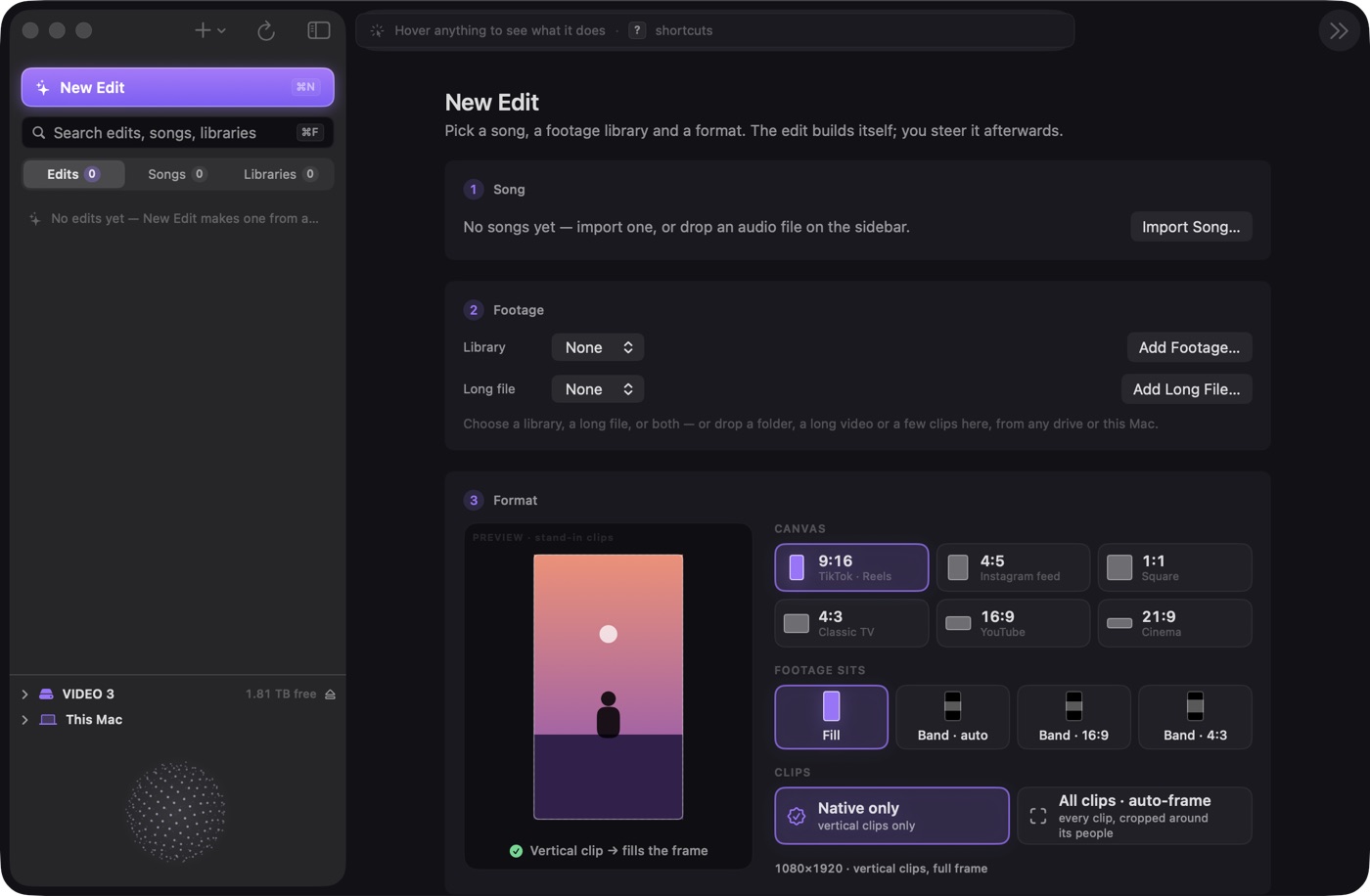
Check your Wi-Fi, then quit the app (⌘ Q) and open it again. It picks up where it left off. Still stuck? Use Help → Report a Bug in the menu bar and Hunna gets the details.
Go to your account page and sign out a Mac you don’t use, then sign in again.
Yes, for 7 days at a time. It just needs to go online once a week to stay signed in. Lyrics and hook ideas need internet.
Sorry, the local tools need Apple Silicon (M1 or newer).
The app tells you when there’s a new version. Click Update and it does the rest.